Job scheduling and team calendar in one place
Plan every job in your business in one calendar. Each technician has their jobs on their phone, and your customer gets a reminder before the visit.
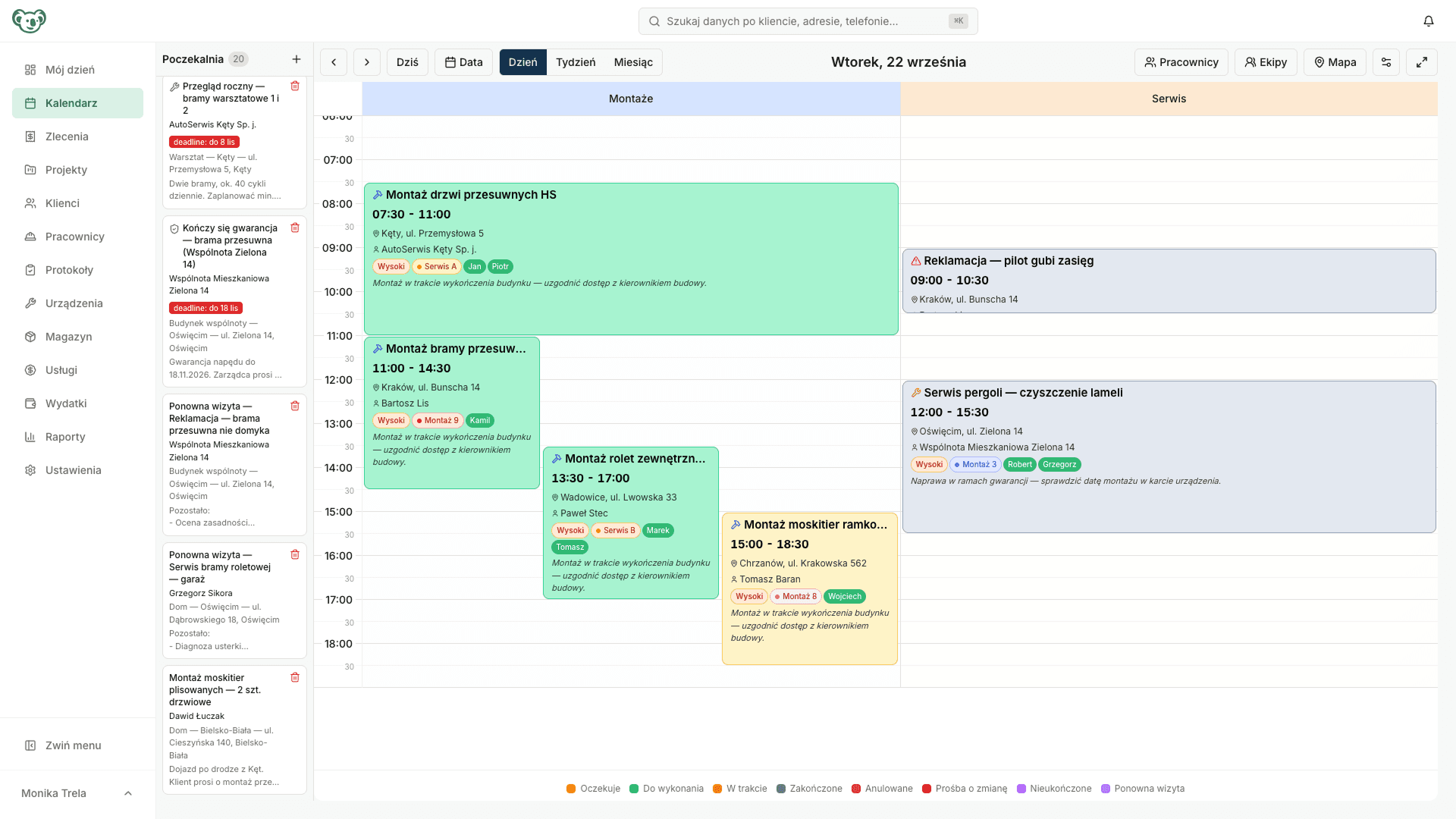
ServiceKoala is software for service and installation businesses with a job calendar and a team schedule. You plan jobs in a day, week or month view, in columns set up for your business or split by employees and teams. You drag a job to another date or another team, and jobs without a date wait in the unscheduled list with a due date. Overlapping jobs for the same employee are highlighted in red, and approved leave shows in the schedule. Technicians get their jobs and notifications in the mobile app for Android and iPhone, which also works offline. The owner decides whether a technician sees the whole calendar, prices and customer contact details. The customer gets an SMS with the date and a reminder the day before the visit.
Job calendar features for service businesses
The ServiceKoala job calendar is the work schedule for your technicians and installers: you plan jobs, assign them to employees and teams and check how busy everyone is on any day.
Day, week and month views
Today's plan, the schedule for the whole week and the workload for the month.
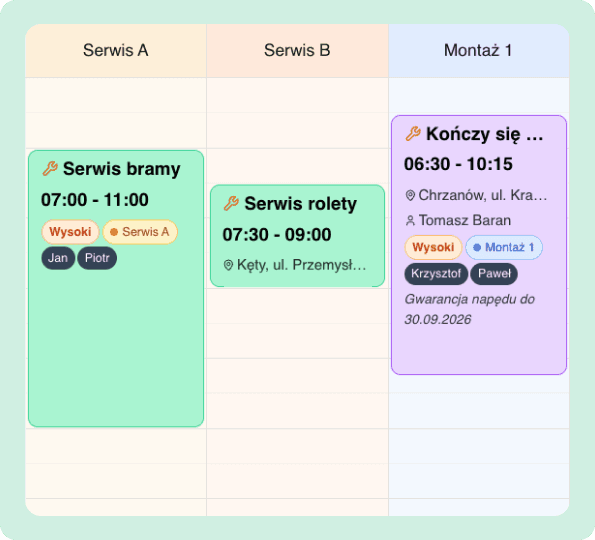
Columns set up your way
You set the columns to match your business: teams, crews, service, installation.
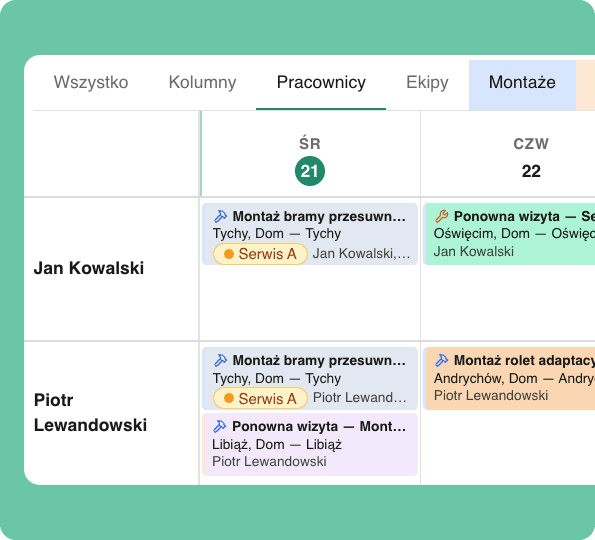
View by employee
Each employee has their own row of jobs, so you can see straight away who has a free slot.
View by team
Jobs grouped by team show which crew has spare capacity on a given day.
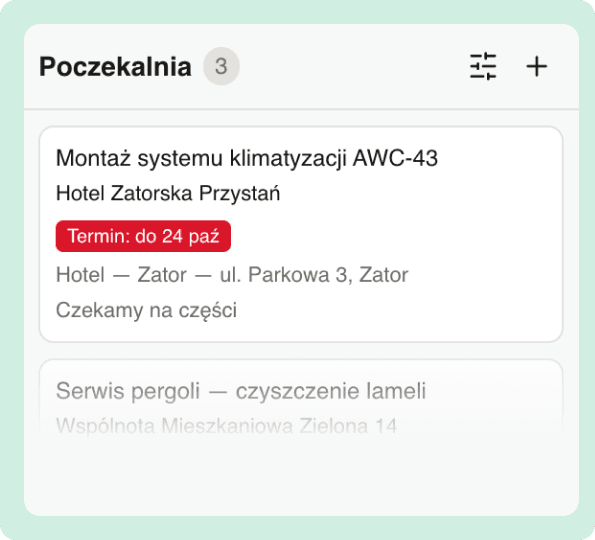
Unscheduled jobs
Jobs without a fixed date wait in the unscheduled list with a due date. Once the date is known, you drag them into the calendar.
Route planningMove jobs between days and times
Drag a job to another time, day, employee or team.
Live updates
Changes to the calendar show up immediately on every computer in the office. The technician gets a notification about a new or moved job.
Unfinished jobs go back to unscheduled
When the work is not finished on the day, you mark the job as unfinished. The return visit goes to the unscheduled list automatically.
Jobs without set times
You can schedule a job for a day without giving a time.
Employee leave in the schedule
The schedule shows which employee is on leave on a given day. An approved leave request goes into the calendar automatically.
Leave and working timeRecurring jobs
You plan weekly, quarterly or yearly maintenance once, and the following visits appear in the calendar by themselves.
Recurring jobsTeam calendar in the mobile app
The owner sees the schedule for the whole business, and each technician sees their own jobs. The calendar also works offline.
Technician appScheduling service jobs and team work
Schedule for installation teams and technicians
The Employees and Teams tabs show who is working where in a given week. You build the work schedule for your technicians and installers for the whole week in one view.
A job calendar with your own columns
Each job tile shows the times, address, priority, team and assigned employees.
Unscheduled list for jobs without a date
Requests from the online form, warranty jobs and maintenance visits without a fixed date wait in the unscheduled list. Return visits from unfinished jobs also go here. You can see which are overdue, and the planner suggests a day when a team will be near the customer.
Meetings and notes in the same calendar
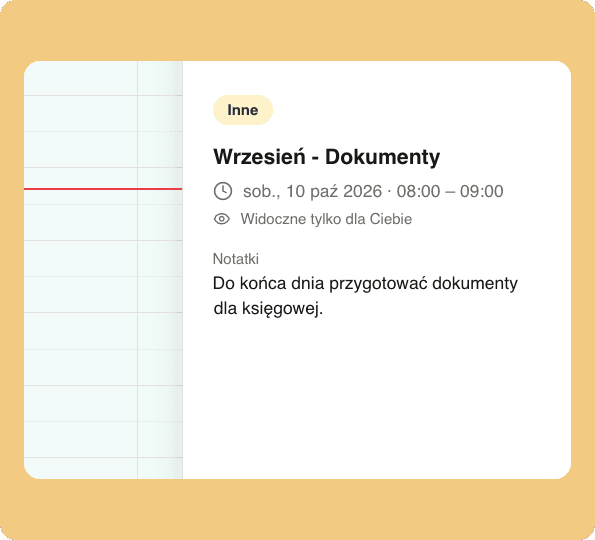
As well as jobs, you can add a site survey, a meeting or a note. An entry marked “Only me” is visible only to you.
Visit reminders for customers are described on the SMS notifications page.
You decide who sees what in the calendar
You set access for the employee and manager roles and, if needed, for a specific person.
Employee and manager roles
A manager runs the calendar with you. An employee mainly uses the mobile app, with the access you give them.
Assigned jobs only or the whole calendar
An employee sees only their own jobs or the schedule for the whole business. You decide.
How many days ahead an employee sees
Today only, a few days, a month or no limit. Their job history is always available.
Hide prices
You can hide the amounts of jobs, services and products from employees.
Hide customer contact details
The customer's phone number and email disappear from jobs and service reports in the employee's app.
Exceptions for a specific person
Role settings apply to everyone, but you can give a team leader wider access than the rest of the team.
How to schedule a service job in the calendar, step by step
- 01
The request comes in
From the form on your website, by phone or from a regular customer. A job without a fixed date waits in the unscheduled list.
- 02
You choose the date and the team
You drag the job into the calendar. You see employee workload, leave and any overlapping jobs.
- 03
The technician gets the job on their phone
The job, with the address, services and customer contact, arrives in the mobile app together with a notification.
- 04
The customer gets an SMS with the date
The customer receives an SMS with the visit date, a reminder the day before and an “On the way” SMS when the team sets off.
- 05
The work and the service report
The technician updates the job status and collects the customer's signature on the service report. An unfinished job goes back to the unscheduled list as a return visit.
Job calendar vs Google Calendar and Excel
Google Calendar and a spreadsheet work for a few jobs a week. As the team grows, you need scheduling software where every job has a customer, an address, a status and an assigned employee.
| Feature | ServiceKoala | Google Calendar | Excel |
|---|---|---|---|
| Job with customer, address, services and status | — | by hand in a spreadsheet | |
| Schedule split by employees and teams | a separate calendar per person | by hand in a spreadsheet | |
| Unscheduled jobs with a due date | — | — | |
| Leave from employee requests shown in the schedule | — | — | |
| SMS with the date and a reminder for the customer | — | — | |
| Prices and customer details hidden from employees | — | — | |
| Service report with customer signature and billing from the job | — | — | |
| Calendar on the technician's phone | also offline |
For a full comparison with spreadsheets and Google Calendar, see Why ServiceKoala. Prices are on the pricing page.
What do you lose by scheduling jobs in Excel and Google Calendar?
Finding a free slot takes several phone calls
A schedule spread across a spreadsheet, Google Calendar and the dispatcher's notebook does not show who really has time.
In ServiceKoala: The employee and team views show each person's workload for the day, week and month, including leave.
Two jobs for the same installer at the same time
The clash only comes to light at the customer's door, and requests without a date stay in notes where nobody schedules them.
In ServiceKoala: Overlapping jobs are highlighted in red, and jobs without a date wait in the unscheduled list with a due date.
Address and scope of work sent by text message
WhatsApp messages are easy to mix up, and changing a date means phoning the whole team.
In ServiceKoala: The technician has the job with the address, services and customer details in the mobile app and gets a notification about every change.
Six-monthly maintenance recorded only in the customer's history
Without a reminder, the maintenance date for an air conditioning unit or a heating system is easy to miss.
In ServiceKoala: You plan recurring jobs once, and the following visits appear in the calendar by themselves for the period you choose.
Which service businesses is the job calendar for?
The ServiceKoala job calendar is for businesses that send their people out to customers: from a few to several dozen technicians and installers working in the field.
HVAC and air conditioning
Scheduling installations, seasonal maintenance and emergency repairs of air conditioning, ventilation and heat pumps. Six-monthly or yearly maintenance as recurring jobs.
See the industrySolar PV and renewables
A schedule for multi-day installations, commissioning and warranty maintenance of PV systems at many sites at once.
See the industryFacility management
Coordinating maintenance, repairs and inspections across many buildings. Requests from tenants wait in the unscheduled list until a team is assigned.
See the industryWindows, doors and gates
Surveys, installations and service in one schedule. When a part is missing, the unfinished installation goes back to the unscheduled list as a return visit.
See the industryMachine and equipment service
Maintenance, repairs and servicing of machines assigned to technicians, with the asset history and the next maintenance date.
See the industryInstallation and field services
Installations, fitting work and breakdowns at customers' premises planned side by side, showing which team has a free slot and what route.
See the industryFrequently asked questions about the ServiceKoala job calendar.
Views and access
What is a service job calendar?
A service job calendar is a schedule in which a service or installation business plans visits to customers and assigns them to technicians and teams. In ServiceKoala every job in the calendar has a customer, an address, services, a status and assigned employees. The calendar connects the team's work schedule with the mobile app, SMS reminders for customers and signed service reports, so you run each job from request to billing in one system.
Does every technician see everyone else's jobs in the calendar?
You decide. In the role settings you choose whether an employee sees only the jobs assigned to them or the whole company calendar. You can also limit how many days ahead they see the schedule: from today only to the full calendar with no limit. A manager has access to the whole calendar, and you can give a specific person, such as a team leader, wider access as an exception.
Can I hide prices and customer details from employees?
Yes. In the role settings you separately turn on or off the visibility of prices (amounts of jobs, services and products) and the customer's phone number and email. The setting applies in the mobile app and in the employee's calendar in the browser. The technician has everything needed to do the job, and the commercial details stay in the office.
Can I check technician workload several weeks ahead?
Yes. The week and month views show scheduled jobs for any period you choose, and the Employees and Teams tabs show the workload of each person and crew. You see straight away who has free slots and who is on leave. This is especially useful when planning seasonal air conditioning maintenance, solar installations and recurring service visits.
Does the job calendar work on a phone and without internet?
Yes. The calendar is available in the ServiceKoala mobile app for Android and iPhone in day, week and month views. The owner and managers see the schedule for the whole business, and each employee sees their own jobs with the address, time and customer contact. The app keeps the most recently downloaded data, so the work plan is available without signal too, and changes sync once the connection is back.
Scheduling and maintenance
Can I block time in the calendar for leave, training or a break?
Yes. An employee requests leave in the mobile app, and once approved the leave appears in their row of the schedule automatically. You add a break directly in a calendar column. Training, a meeting or a site survey can be saved as a separate entry that does not go into the job list or billing. An entry marked “Only me” is visible only to you.
How do I make sure planned maintenance and recurring service visits are not missed?
Schedule them as recurring jobs: weekly, every two weeks, monthly, quarterly, every six months, yearly or with your own rule. The following visits appear in the calendar by themselves. Maintenance for assets with a maintenance plan goes to the unscheduled list with a due date, and the “overdue” filter shows the ones that have not been scheduled in time.
What happens if I assign a technician to two jobs at the same time?
In the employee and team views, overlapping jobs are highlighted in red, so a clash is visible before the team sets off. The system does not block such a plan, because two short jobs at the same address are sometimes intentional, but no clash will slip past the dispatcher.
What happens to a job that could not be finished on the day?
You mark the job as unfinished, and a return visit with the customer details and the scope of work is created in the unscheduled list automatically. All you need to do is drag it into the calendar on a new date.
Notifications
Does a technician get notified about a new job or a change of date?
Yes. The employee gets a push notification in the mobile app when a job is assigned to them, changed or deleted, and the job appears in their day plan straight away. The employee can turn off each type of notification in the app settings.
Does the customer get a reminder about the technician's visit?
Yes. The customer can get an SMS with the visit date, an SMS reminder the day before the visit and a confirmation email. When the team sets off, you can send them an “On the way” SMS. Reminders reduce wasted visits when the customer is not at the address.
Differences and integrations
How is the calendar different from the unscheduled list and the job map in ServiceKoala?
The calendar shows jobs with a fixed date: who is working when and where. The unscheduled list collects jobs waiting for a date: requests from the online form, maintenance visits and return visits. The job map shows addresses on a map and employee routes, and the planner suggests a day when a team will be near the customer. All three views use the same jobs.
Does the ServiceKoala calendar sync with Google Calendar?
No. ServiceKoala replaces Google Calendar for scheduling jobs: a job in the calendar has a customer, an address, a status and a service report, which an ordinary event does not. During onboarding we move your existing appointments and customers into the system, and from then on the whole team works in one calendar.
See ServiceKoala with examples from your industry.
30 minutes online. We will show you how ServiceKoala runs the job process in a business like yours and answer your questions.
14-day free trial · no card required