QR codes for equipment in your field service app
Stick a QR code on your customer’s equipment. One scan and the customer knows who to call, and the technician knows which unit it is.
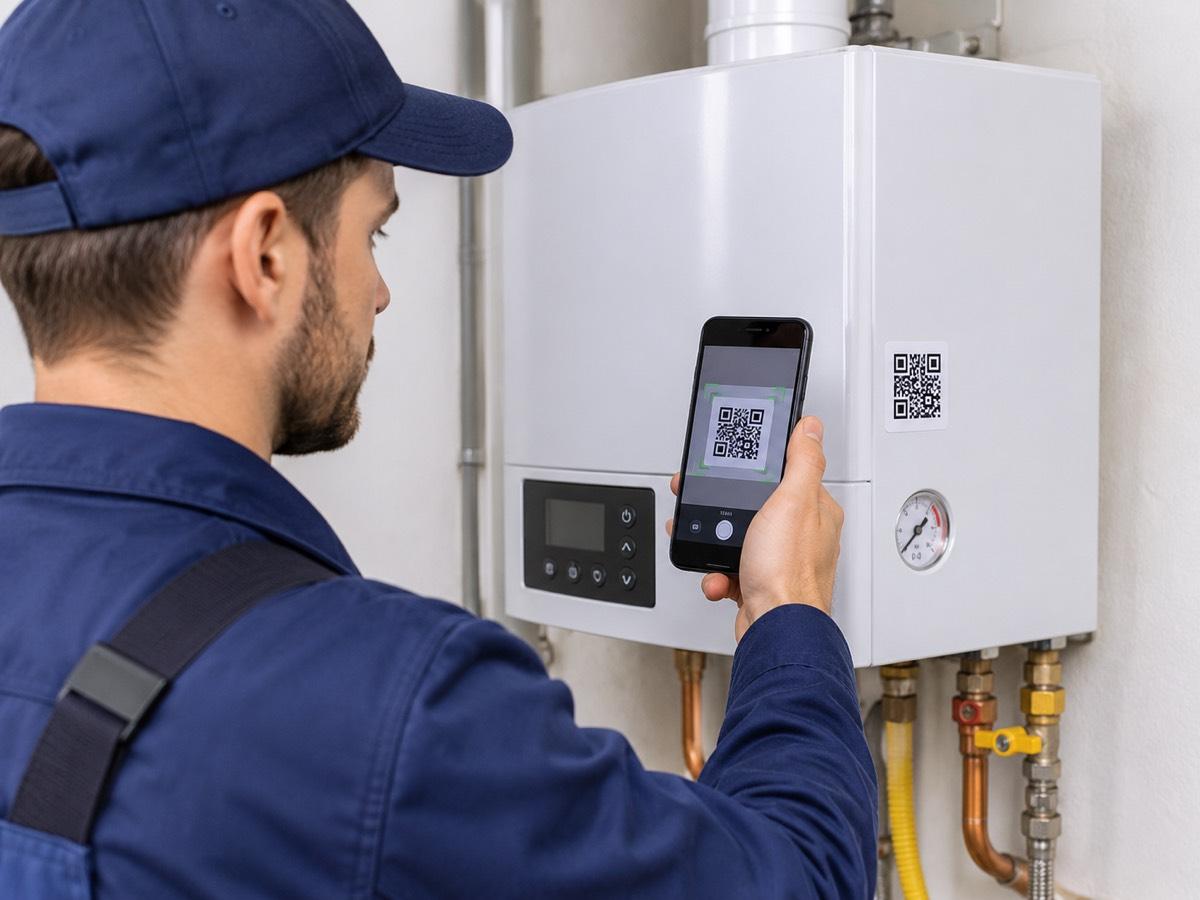
Equipment QR codes in ServiceKoala are labels that a service company prints from the app and sticks on its customers’ equipment: air conditioners, heat pumps, boilers, gates or machines. Each label is linked to an asset card that holds the model, serial number, warranty, maintenance plans and service history. The technician links a label to an asset in the mobile app with one scan. The customer needs no app and no account: after scanning the code with a phone camera they see a page with the service company’s name, the asset name and a call button, and they can send a service request straight away. The request lands in the unscheduled jobs list in ServiceKoala. Labels are printed on a regular printer, on an A4 sheet that holds 24 labels. A damaged label can be voided and replaced with a new one without losing the asset history.
What a QR label does on the equipment
The customer comes back to you, not a competitor
When a unit stops working, the customer searches for a number online. With a QR label your contact details are on the equipment itself.
A request without dictating details over the phone
The customer scans the code and sends a request. You know at once which asset it concerns and where it is installed.
No more guessing what the unit is
The model, serial number and repair history are on the asset card linked to the label, not in old reports.
Every unit can be told apart
With several identical units in one building, the QR code settles which one is meant.
Print equipment QR labels yourself, from the app
Generate a sheet of labels in ServiceKoala and print it on a regular printer. You do not order labels from an outside company or wait for delivery. Each label carries a QR code and your company name.
The technician links the QR code to the asset on the phone
The technician sticks the label on the unit and links it to the asset card in the mobile app. From then on the label points to that specific asset at that specific customer.
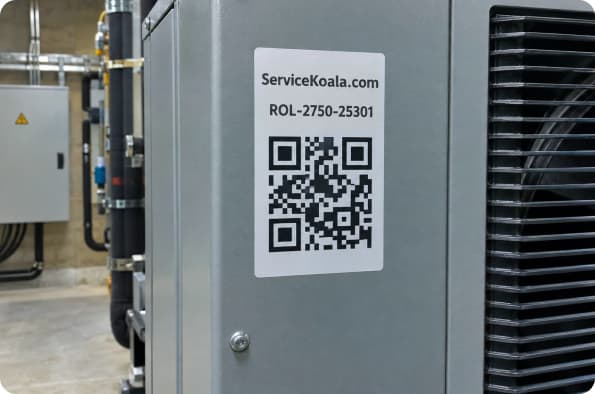
What the customer sees after scanning the QR code
The customer scans the label with a phone camera, without installing an app or creating an account. They see your company name, the asset name and a call button. They can also send a service request straight away, which lands in your unscheduled jobs list.
The QR code ties the asset to its service history
Behind the label is the asset card: equipment details, warranty, maintenance plans, linked jobs and service reports, and replaced parts. Before the visit the technician knows what was done last time.
Labels are linked to assets on the phone. See what else you get with the field technician app.
QR codes in a service company in three steps
- 01
Print a sheet of labels
Generate the labels in settings and print them on self-adhesive paper.
- 02
Stick and link the code
During a visit the technician sticks the label on and scans it in the app to link it to the asset.
- 03
Receive requests
The customer scans the code, calls or sends a request. You schedule the visit from the unscheduled jobs list.
What exactly you get.
An A4 sheet of labels with cut lines. No special printer and no scanner needed.
A phone camera is all the customer needs. Nothing to install and no account to create.
The label and the page shown after scanning carry your company name and phone number.
A request sent from a QR code lands in the unscheduled jobs list, where you plan the visit in the calendar.
You can also link labels to assets added earlier, at the next visit.
Void the old label and link a new one. The asset history stays.
The page shown after scanning does not reveal customer data. You decide whether it lists the dates of completed inspections.
QR codes for equipment in your industry
Air conditioning and HVAC
A label on the air conditioner and heat pump. The customer requests maintenance or reports a fault with one scan.
See the industryEquipment service
Coffee machines, production machines and catering equipment tagged with a code, each with its own repair history.
See the industrySolar PV
A QR code on the inverter and battery storage with the warranty service contact.
See the industryWindows, doors and gates
A label on the gate operator. The building manager knows who services it.
See the industrySecurity systems and CCTV
Control panels and recorders tagged with a code at every site.
See the industryFacility management
Dozens of units in one building, each identifiable by its own code.
See the industryFrequently asked questions about the equipment QR codes.
How do QR codes for equipment work in field service?
You print QR code labels in ServiceKoala, stick them on your customers’ equipment and link them to asset cards in the mobile app. After scanning the code the customer sees your company’s contact details and can send a request, and you know which asset it concerns.
Do I need a special printer or scanner for QR codes?
No. The app generates a PDF with an A4 sheet that holds 24 labels of 4 × 4 cm with cut lines. You print it on a regular printer, for example on self-adhesive paper. A phone is enough for scanning.
Does the customer have to install an app to scan the code?
No. The customer scans the label with a phone camera and a page opens in the browser. There is no app to install and no account to create.
What does someone see after scanning the QR code on an asset?
A page with your company logo or name, the asset name, manufacturer and model, and a button to call your company. They can also send a service request, which lands in your unscheduled jobs list. The page does not show the service history or customer data.
Where does a request sent from a QR code go?
To the unscheduled jobs list in ServiceKoala, the list of requests waiting for a date. From there you schedule the visit in the calendar and assign a technician.
Can I label assets that are already in my database?
Yes. Labels are printed blank and you link a code to the chosen asset after sticking it on: in the mobile app by scanning it, or in the web app by typing the short code from the label.
What if a label gets damaged or falls off?
You void the old label and link a new one to the asset. The asset card and the full service history stay unchanged.
What is printed on the label?
The QR code, a short code to type by hand in case scanning fails, and your company name.
How many labels can I print?
You generate labels in batches of 20, 50 or 100 and can print more at any time.
Explore other features
Assets and maintenance
An asset card with service history, maintenance plans and due dates that remind you on their own.
See the feature02Service request form
A public page and a widget for your website collect customer requests 24/7. Each request goes straight into the unscheduled jobs list.
See the feature03Maintenance reminders
Your own reminders with due dates, plus automatic reminders about asset maintenance and warranty expiry.
See the featureSee ServiceKoala with examples from your industry.
30 minutes online. We will show you how ServiceKoala runs the job process in a business like yours and answer your questions.
14-day free trial · no card required